> ## Documentation Index
> Fetch the complete documentation index at: https://docs-dev-eval-flywheel-swift-quickstart.mintlify.site/llms.txt
> Use this file to discover all available pages before exploring further.
# Apple Xcodeでユニバーサルリンクサポートを有効にする
> Auth0 Dashboardを使ってApple XcodeでAuth0アプリのユニバーサルリンクサポートを有効にする方法を説明します。
ユニバーサルリンクはドメインとアプリケーション間の検証済みの関係を確立するため、Auth0アプリケーションの設定とiOSアプリケーションの両方が同期している必要があります。そのため、AppleのチームIDとバンドルIDをAuth0に提供する必要があります。Auth0登録済みアプリケーションのユニバーサルリンクサポートを有効にするには、Auth0 Dashboardを使うことができます。
## AppleのチームIDとバンドルIDを取得する
1. Appleの **[Team ID(チームID)]** を見つけるには、[Appleデベロッパアカウント概要](https://developer.apple.com/membercenter/index.action#accountSummary)ページに移動します。
2. iOSアプリケーションの **[Bundle identifier(バンドルID)]** を見つけるには、[Xcodeプロジェクト設定](https://developer.apple.com/library/content/documentation/IDEs/Conceptual/AppDistributionGuide/ConfiguringYourApp/ConfiguringYourApp.html)ページに移動します。
## AppleのチームIDとバンドルIDをAuth0に提供する
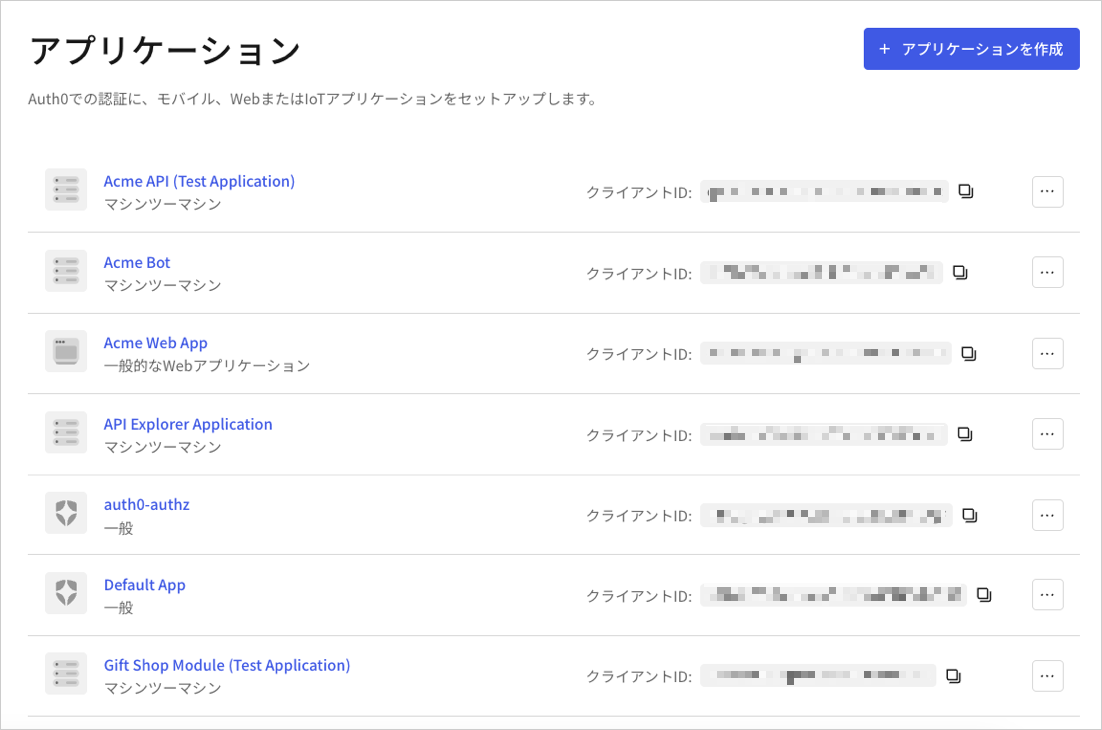
1. [[Dashboard]>[Applications(アプリケーション)]>[Applications(アプリケーション)]](https://manage.auth0.com/#/clients)に移動し、アプリケーションの名前を選択して表示します。
 2. **[Settings(設定)]** ページの下までスクロールし、**[Show Advanced Settings(詳細設定を表示)]** を選択します。
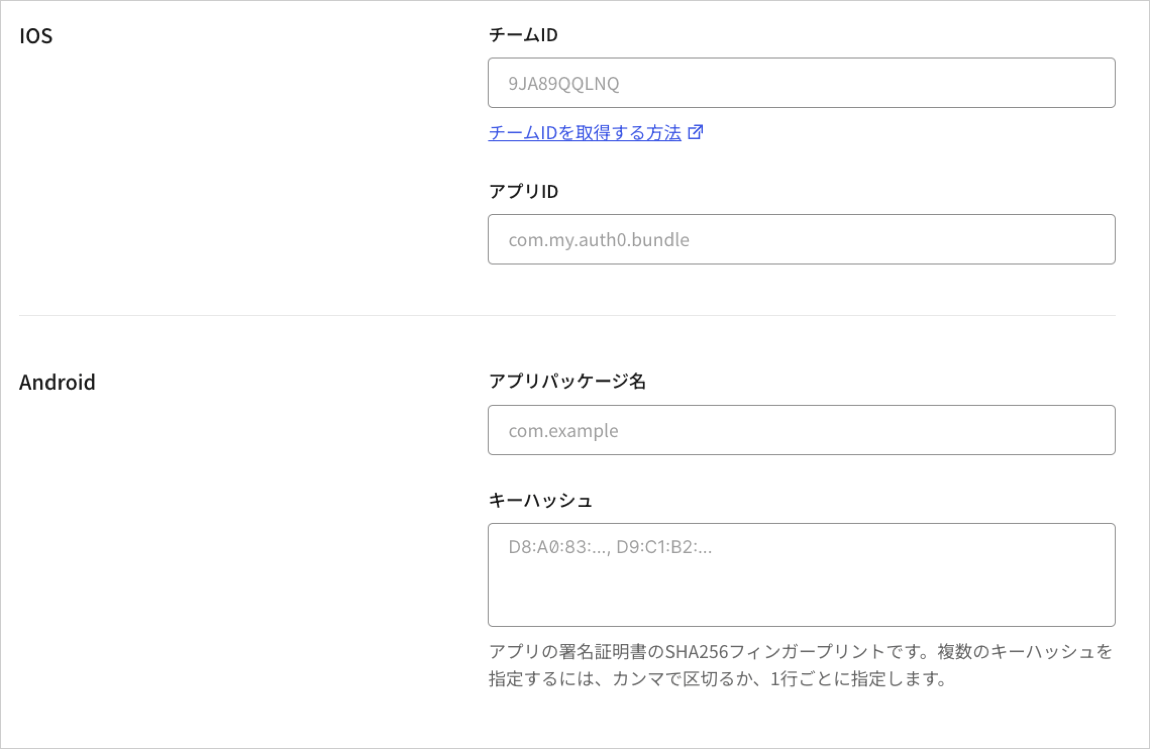
3. **[Device Settings(デバイス設定)]** を選び、iOSアプリケーションの **[Team ID(チームID)]** と **[App bundler identifier(アプリバンドルID)]** の値を入力して、**[Save Changes(変更を保存)]** を選択します。
2. **[Settings(設定)]** ページの下までスクロールし、**[Show Advanced Settings(詳細設定を表示)]** を選択します。
3. **[Device Settings(デバイス設定)]** を選び、iOSアプリケーションの **[Team ID(チームID)]** と **[App bundler identifier(アプリバンドルID)]** の値を入力して、**[Save Changes(変更を保存)]** を選択します。
 ## リンクのテスト
アプリケーションがユニバーサルリンクの`apple-app-site-association`ファイルを利用できるかどうか、ブラウザーで次のURLに移動して確認します:`{yourDomain}/apple-app-site-association`
リンクに成功している場合は、以下のようなJSONが表示されます(読みやすいように整えられています)。
```json lines theme={null}
{
"applinks": {
"apps": [],
"details": [{
"appID": "86WQXF56BC.com.auth0.Passwordless-Email",
"paths": ["/ios/com.auth0.Passwordless-Email/*"]
}]
}
}
```
## リンクのテスト
アプリケーションがユニバーサルリンクの`apple-app-site-association`ファイルを利用できるかどうか、ブラウザーで次のURLに移動して確認します:`{yourDomain}/apple-app-site-association`
リンクに成功している場合は、以下のようなJSONが表示されます(読みやすいように整えられています)。
```json lines theme={null}
{
"applinks": {
"apps": [],
"details": [{
"appID": "86WQXF56BC.com.auth0.Passwordless-Email",
"paths": ["/ios/com.auth0.Passwordless-Email/*"]
}]
}
}
```